
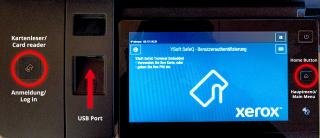
1) Anmeldung mit Copy Card:
Ein kurzes hin halten reicht zur Anmeldung. Die Karte kann, muss aber nicht, dort abgelegt werden.
Entfernen und erneutes hin halten führt zur Abmeldung.
2) USB Port:
Bei Druck von oder Scan Übertragung an den USB Stick, den markierten Port verwenden.
3) Home Button:
Ermöglicht nach Anmeldung jederzeit die Rückkehr zum Hauptmenü.
Eng:
1) Login with Copy Card:
Holding the card near the symbol is enough. You may but don't have to put it down.
Regardless of that, moving the card away and then close again will initiate the logout process.
2) USB Port:
Plug your USB Stick in here to print Files from it or scan them onto your USB drive.
3) Home Button:
Always returns the User back to the main menu once logged in.
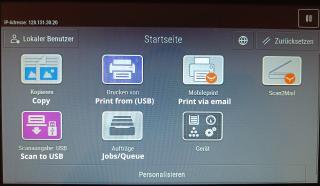
1) Kopien:
Kopien über die Glasplatte oder den Vorlageneinzug
2) Drucke von:
Drucken vom mitgebrachten USB Stick
3) Mobileprint:
Ausdrucken von vorab gemailten Files (siehe Mobileprint Anleitung für mehr Details)
4) Scan2Mail:
Scan mit Übertragung an die auf der Karte hinterlegten E-Mail Adresse
5) Scanausgabe: USB
Scan mit Übertragung auf den angeschlossenen USB Stick.
6) Aufträge:
Übersicht über aktive und abgeschlossene Aufträge und der gegenwärtige Status
Eng:
1) Copy:
To copy either from the glass plate or the document feeder above.
2) Print from:
To print files from the USB Stick.
3) Mobileprint:
Print of files sent vie email (see mobileprint Guide for further details)
4) Scan2Mail:
Scan to be sent to your email address.
5) Scan to USB
As the name implies: Scan to your USB drive.
6) Jobs/Queue:
Overview of active and finished jobs and their current status.
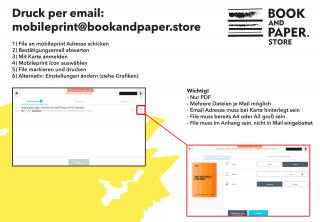
Druck per email:
mobileprint@bookandpaper.store
1) File an mobileprint Adresse schicken
2) Bestätigungsemail abwarten
3) Mit Karte anmelden
4) Mobileprint Icon auswählen
5) File markieren und drucken
6) Alternativ: Einstellungen ändern (siehe Grafiken)
Eng:
Print via email:
mobileprint@bookandpaper.store
1) Send the file to the mobileprint address above
2) Wait for email confirmation
3) Sign in with your card
4) Choose Mobileprint in the main menu
5) Mark the File(s) you want to print
6) Alternatively: Choose the cogwheel icon to adjust settings
Allgemeine Informationen & FAQ (Deutsch)
Sowohl die Applikationen "Mobileprint" als auch "Scan2Mail" zeigen den aktuellen Stand des Guthabens.
Druckdaten müssen PDF Files sein und ein Seitenformat von A4 oder A3 haben.
(Die einzige Ausnahme sind die INTU Studenten Gutscheine für die eine extra Lade mit Sonderformat Papier angelegt wurde)
Eine automatische Skalierung ist leider nicht möglich.
Die email Adresse von der das File gesendet wird muss bei der Karte hinterlegt werden. Es kann immer nur eine email Adresse pro Karte hinterlegt sein aber diese kann von unseren Mitarbeitern jederzeit auf Wunsch geändert werden.
Gehen Sie auf im Hauptmenü auf die Applikation "Aufträge".
Wählen Sie den Auftrag aus um sich den aktuellen Status anzusehen.
- Wenn der Auftrag noch verarbeitet wird, einfach noch kurz gedulden.
- Wenn angezeigt wird, dass nicht genug Guthaben vorhanden ist dieses bitte auffüllen.
- Wenn aufgerufen wird Material einzulegen welches weder A4 noch A3 ist hat das PDF eine Seitengröße die nicht gedruckt werden kann. In diesem Fall muss ein neues PDF mit der richtigen Seitengröße generiert werden. (Siehe nächster Punkt unten)
- Wenn es A4 oder A3 ist bitte bei einem Mitarbeiter melden dann füllen wir die Laden umgehend wieder auf.
In diesem Fall muss man aus dem Dokument ein neues PDF generieren dass auf A4 oder A3 skaliert ist.
Je nach PDF Reader am Smartphone oder PC ist dieser Vorgang leicht unterschiedlich aber das Prinzip ist immer das Selbe.
1) PDF File öffnen
2) Nun "Drucken" auswählen.
3) Als Drucker einen PDF Drucker auswählen wie z.B.: "Microsoft PDF Print" (meistens vorinstalliert). Falls nicht kommt jeder PDF Reader (Adobe, Foxit, PDF24, etc.) mit einem solchen Druckertreiber.
4) Überprüfen ob das hinterlegte Seitenformat A4 oder A3 ist (gerade ersteres ist oft als Default Größe hinterlegt)
5) "Drucken" - Statt einem Papierbogen wird ein neues PDF generiert. Dieses einfach an einem beliebigen Ort speichern und dieses stattdessen drucken.
Dokumente müssen in der email im Anhang sein, NICHT in die email eingebettet!
Manche email Programme betten Dokumente automatisch ein statt sie anzuhängen.
Auf Grund der vielen verschiedenen Betriebssysteme, Versionen und Anbietern gibt es leider keine uns bekannte allgemein gültige Lösung für dieses Problem.
General Information & FAQ (English)
You can find your current credit score in the right upper corner of the screen in the applications "Mobileprint" or "Scan2Mail"
Only PDF Files can be printed. They need to have the page sizes of either A4 or A3.
(The only exception is the INTU Student coupon for which an additional tray with a special paper size was prepared.)
Automatically scaling other page sizes to either A3 or A4 unfortunately isn't possible.
The email address used to send files to the printer must first be registered to the card. There can only ever be one address registered for any one card. However our employees can switch out the registered address at any point if so desired.
- Click on the Job in question.
- If the file is still being processed, just wait for it to finish and proceed.
- If there isn't enough money on your card, please charge more credit onto your card and repeat the process afterwards.
- If the printer requests paper that is neither A4 or A3 the PDF file has the wrong page size(s). In that case you have to generate a new PDF in your chosen format. (For help in that regard read on further).
- If the printer requests either A4 or A3 it is out of paper. Please inform one of our employees and they'll refill the trays immediately.
In that case you'll have to generate a new PDF that is scaled to A4 or A3.
Depending on the specific PDF Reader on the PC/Mac or Smartphone these next steps may vary a bit between one or the other but the basic concept is always the same.
1) Open your PDF File
2) Choose "Print"
3) Choose a virtual PDF printer. For example: "Microsoft PDF Print" (usually preinstalled for Windows systems). But any PDF printer will do (Adobe Reader, Foxit, PDF24, etc.) come with a print driver like it.
4) Make sure the page size is either A4 or A3 (the former is often the default size for PDF printers anyway)
5) "Print" - Instead of a sheet of paper a new PDF file will be generated. Save the file wherever you like and actually print this new one instead.
Documents have to be attached to an email, NOT embedded.
Some email programs automaticall embed Documents rather than attaching them.
Since there are countless different providers, operating systems and versions there is no one-fits-all solution to this problem that we would be aware of.